Best Valorant Settings for Max FPS & Visibility (2026 Pro Guide)
Best Valorant Settings for Max FPS & Visibility (2026 Guide)
In a tactical shooter like Valorant, frames win games. If your PC is struggling to hit 144Hz or 240Hz, you are at a competitive disadvantage due to “Input Lag.” The Best Valorant Settings are not about making the game look pretty; they are about stripping away visual clutter to see enemies faster.
Unlike generic guides that explain every single slider, this is the “Pro Standard” configuration used by 90% of VCT players. Whether you have a high-end RTX 5090 or a budget laptop, these settings will maximize your FPS and visibility.
1. Best General Settings (Minimap & Visibility)
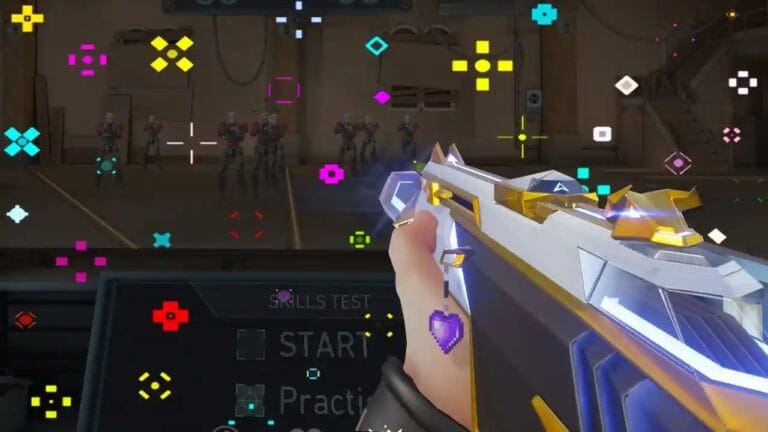
Before tweaking graphics, you must optimize your information HUD. The Best Valorant Settings for the minimap allow you to see the entire map at a glance, which is crucial for tracking flankers.
| Setting | Recommended Value | Why? |
|---|---|---|
| Enemy Highlight Color | Yellow (Deuteranopia) | Human eyes react faster to yellow than red. |
| Minimap Rotate | Rotate | Easier to orient yourself. |
| Keep Player Centered | Off | Allows you to see the whole map. |
| Minimap Size | 1.1 | Larger map = more info. |
| Minimap Zoom | 0.9 | See corners clearly. |
2. Best Video Settings for Max FPS
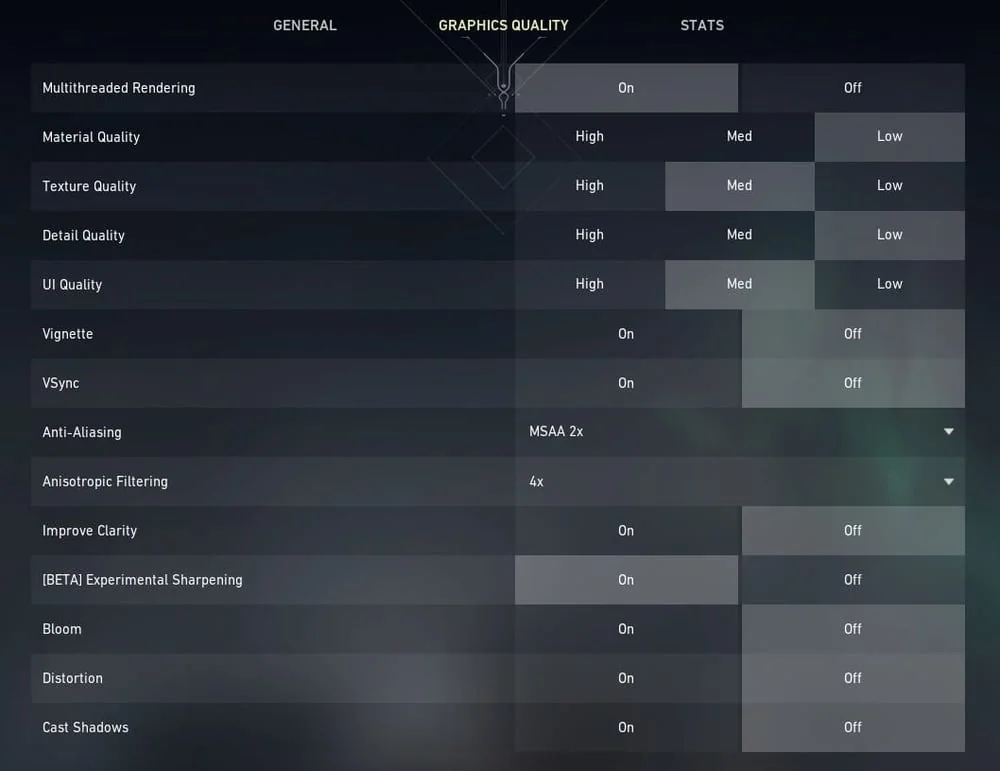
This is the most critical section. Copy these Best Valorant Settings exactly to gain raw performance. We prioritize “Low” settings not just for FPS, but to remove distracting foliage (bushes/grass) that enemies can hide in.
General Graphics
| Setting | Value |
|---|---|
| Display Mode | Fullscreen (Always) |
| Resolution | Native (1920×1080) |
| NVIDIA Reflex Low Latency | On + Boost |
Graphics Quality (Optimized)
| Feature | Setting | Impact |
|---|---|---|
| Multithreaded Rendering | ON | Crucial for CPU performance. |
| Material Quality | Low | More FPS. |
| Texture Quality | Low | More FPS. |
| Detail Quality | Low | Removes grass/clutter. |
| UI Quality | Low | No impact on gameplay. |
| Vignette | Off | Increases peripheral visibility. |
| V-Sync | OFF | NEVER turn this on (Input Lag). |
| Anti-Aliasing | MSAA 2x or None | Sharper edges vs Max FPS. |
| Anisotropic Filtering | 4x | Clearer textures at oblique angles. |
| Bloom | Off | Prevents blinding light effects. |
| Distortion | Off | Removes warping effects near explosions. |
| Cast Shadows | Off | Boosts FPS significantly. |
3. Best Audio Settings (HRTF)
Visuals aren’t everything. Sound is half the battle. The Best Valorant Settings for audio involve enabling HRTF (Head-Related Transfer Function).
- Enable HRTF: ON. This simulates 3D surround sound using stereo headphones. It allows you to pinpoint exactly where footsteps are coming from.
- Master Volume: 100% (Adjust via Windows).
- Voice Chat Volume: 50-70% (So teammates don’t drown out game sound).
4. Network & Buffer Settings
Often overlooked, your network settings can cause “phantom bullets.”
- Network Buffering: Set to Minimum. Only increase this if you have very unstable internet.
- NVIDIA Reflex: Ensure you have the latest drivers from NVIDIA to support “On + Boost,” which reduces system latency by up to 30%.
5. System & Mouse Optimization
Your in-game settings mean nothing if Windows is holding you back. Ensure your mouse gives you a true 1:1 movement ratio.
- Windows Mouse Settings: Uncheck “Enhance Pointer Precision”.
- Valorant Raw Input Buffer: ON. (This is mandatory if you use an 8000Hz mouse like the Razer Viper V3 Pro).
- Windows Game Mode: ON. This prioritizes Valorant over background apps.
6. Pro Player Examples
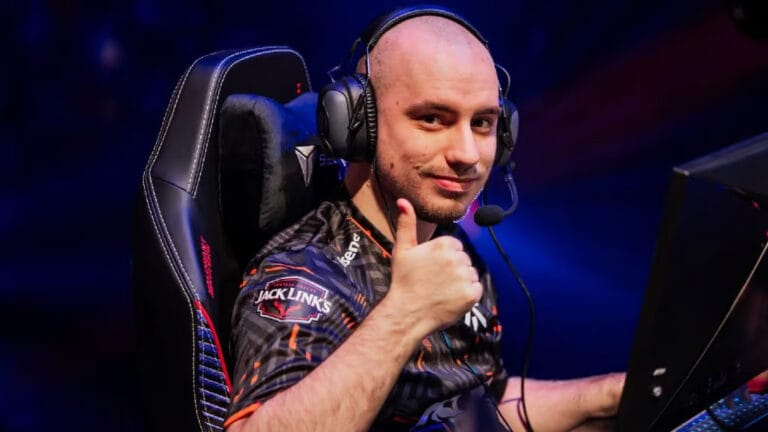
Want to see these settings in action? Check out how the top pros configure their setups. You can see their full stats on PlayValorant.com.
- TenZ Settings: Uses all Low settings to maximize frames for his 360Hz monitor.
- Demon1 Settings: Turns off all “Bloom” and distractions to focus on pure aim.
⚠️ Optimize Your Hardware
Settings can only do so much. See the mice pros use to get 4000Hz performance.
👉 View Pro Hardware Database