Jinggg Valorant Crosshair & Settings (2026)
Jinggg Valorant Settings & Crosshair Code: 2026 Pro Guide
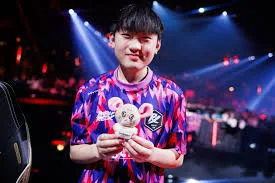
Wang “Jinggg” Jing Jie is the explosive entry-fragger for Paper Rex, widely considered one of the best Raze players in the world. Known for his trademark “W-Gaming” playstyle, he combines chaotic movement with surgical aim to overwhelm opponents before they can even react. Because his role requires constant flicking and mid-air satchel control, mastering the exact Jinggg Valorant settings gives you the blueprint for aggressive, high-impact duelist gameplay.
If you want to dive into sites and create space like the VCT Pacific superstar, you need his precise 2026 configuration. This complete guide breaks down his high-speed mouse sensitivity, his ultra-lightweight hardware, his 4:3 letterbox video resolution, and his highly visible cyan crosshair. You can track his tournament history and performance stats on his Liquipedia profile.
Jinggg Hardware Vault: The Duelist Setup
A vital element of the Jinggg Valorant settings is his carefully curated hardware vault. Unlike many pros who stick to mainstream brands, Jinggg uses enthusiast-grade peripherals designed specifically for speed and raw performance. Here is the premium 2026 equipment he uses on stage:
| Hardware Component | Model / Gear |
|---|---|
| Gaming Mouse | G-Wolves Hati S+ 4K |
| Esports Monitor | ZOWIE XL2566K (360Hz) |
| Keyboard | Wooting 60HE v2 Silver |
| Gaming Headset | HyperX Cloud III Wireless |
| Mousepad | Artisan Hayate Otsu XSoft Black |
Jinggg Mouse Settings & eDPI
When reviewing the Jinggg Valorant settings, his mouse configuration stands out due to a slightly higher effective DPI (eDPI) compared to the tactical shooter average. This higher sensitivity allows him to execute rapid 180-degree turns and complex Raze movement mechanics without picking up his mouse.
- DPI: 1600
- In-Game Sensitivity: 0.196 (Often rounded to 0.20)
- eDPI: 313.6
- Zoom/Scoped Sensitivity: 1.10
- Polling Rate: 2000Hz (Via G-Wolves Hati S+ 4K)
- Windows Sensitivity: 6/11
By playing on 1600 DPI, Jinggg ensures the lowest possible input latency, while his 313.6 eDPI gives him a massive speed advantage during chaotic, close-quarters site executions.
Jinggg Valorant Crosshair Code
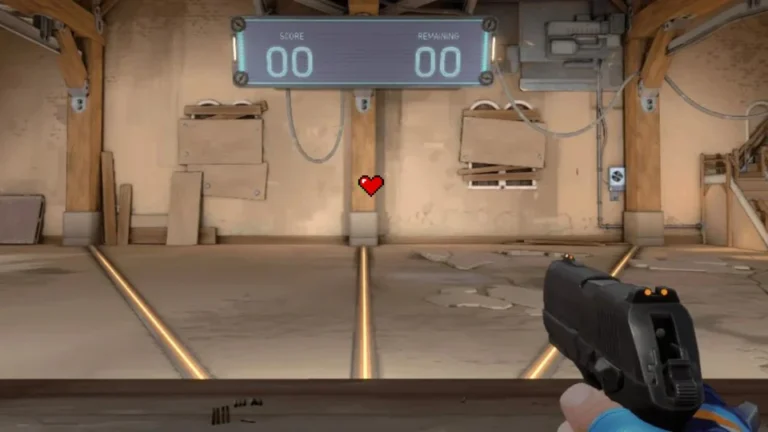
Jinggg uses a distinct Cyan crosshair. Cyan provides excellent contrast against the red outlines of enemy players and remains highly visible against almost every wall texture in the game.
🎯 Jinggg Pro Code
0;s;1;P;c;5;o;1;0t;1;0l;2;0o;2;0a;1;0f;0;1b;0Manual Crosshair Settings:
If the import code fails, you can easily build his crosshair in the game settings using these values:
Color: Cyan | Outlines: On (Opacity 1, Thickness 1) | Center Dot: Off | Inner Lines: 1 / 2 / 1 / 2 | Outer Lines: Off
Jinggg Video Settings & Resolution
Another key component of the Jinggg Valorant settings is his display resolution. Like many competitive veterans, he opts for a 4:3 aspect ratio, but he chooses to play with Letterbox (black bars) rather than stretching the image.
- Resolution: 1280×960
- Aspect Ratio: 4:3 (Letterbox)
- Display Mode: Fullscreen
- Multithreaded Rendering: On
- Material / Texture / Detail Quality: Low (to maximize frame rates and remove visual clutter)
- Anti-Aliasing: None
Frequently Asked Questions
What keyboard does Jinggg use?
Jinggg uses the Wooting 60HE v2 Silver. This 60% form factor keyboard features magnetic Hall Effect switches (Lekker switches) that allow for Rapid Trigger functionality, giving him instant counter-strafing capabilities that standard mechanical keyboards cannot match.
Why does Jinggg play on a 4:3 Letterbox resolution?
Playing on 1280×960 with the Letterbox setting provides a lower resolution for higher frame rates, but keeps the game from stretching horizontally. This maintains standard mouse movement feel on the X and Y axis while keeping the 360Hz monitor performing at its absolute peak.
How do I import the Jinggg Valorant settings into my game?
To use his cyan reticle, copy the 20-character code string provided above. Launch Valorant, open your settings, navigate to the Crosshair tab, click the “Import Profile Code” button (the downward arrow icon), and paste the code.