Ultimate CS2 Jump Throw Bind Guide: Console Commands (2026)
← Learn the Essential Mirage Callouts
Ultimate CS2 Jump Throw Bind Guide: Console Commands & Rules (2026)
In the highly competitive ecosystem of Counter-Strike, a single missed smoke grenade can cost your team an entire round. For over a decade in CS:GO, players relied on automated scripts to ensure their grenades traveled the maximum possible distance with pixel-perfect consistency. However, the transition to Valve’s Source 2 engine fundamentally changed how the game processes player inputs and utility trajectories.
If you have recently returned to the game and tried to paste your old config files into the console, you have likely realized that your classic cs2 jump throw bind is completely broken. In late 2024, Valve initiated a massive crackdown on input automation, fundamentally banning multi-action binds to preserve the raw, mechanical skill gap. In this comprehensive 2026 configuration guide, we are breaking down exactly how utility mechanics work today. We will explain why the old scripts were banned, how the new built-in throwing mechanics operate, and the entirely legal two-key cs2 jump throw bind workaround that professional players are currently using to maintain their flawless execution.
The Valve Ban: Why Did My Bind Stop Working?
To understand how to throw grenades in 2026, you must first understand the history of the mechanic. In previous iterations of the game, throwing a smoke grenade at the exact apex of a jump was incredibly difficult due to server tick-rate variations. To bypass this, players created an “alias” script in their autoexec file. By pressing a single button, the script would tell the game to jump and release the grenade simultaneously.
However, Valve’s introduction of the “Sub-Tick” architecture in Counter-Strike 2 meant that player inputs were registered at the exact millisecond they occurred, rather than waiting for the next server tick. To prevent hardware automation (like Snap Tap keyboards) and complex multi-action scripts from dominating the competitive ladder, Valve explicitly banned any single keypress that executed more than one action.
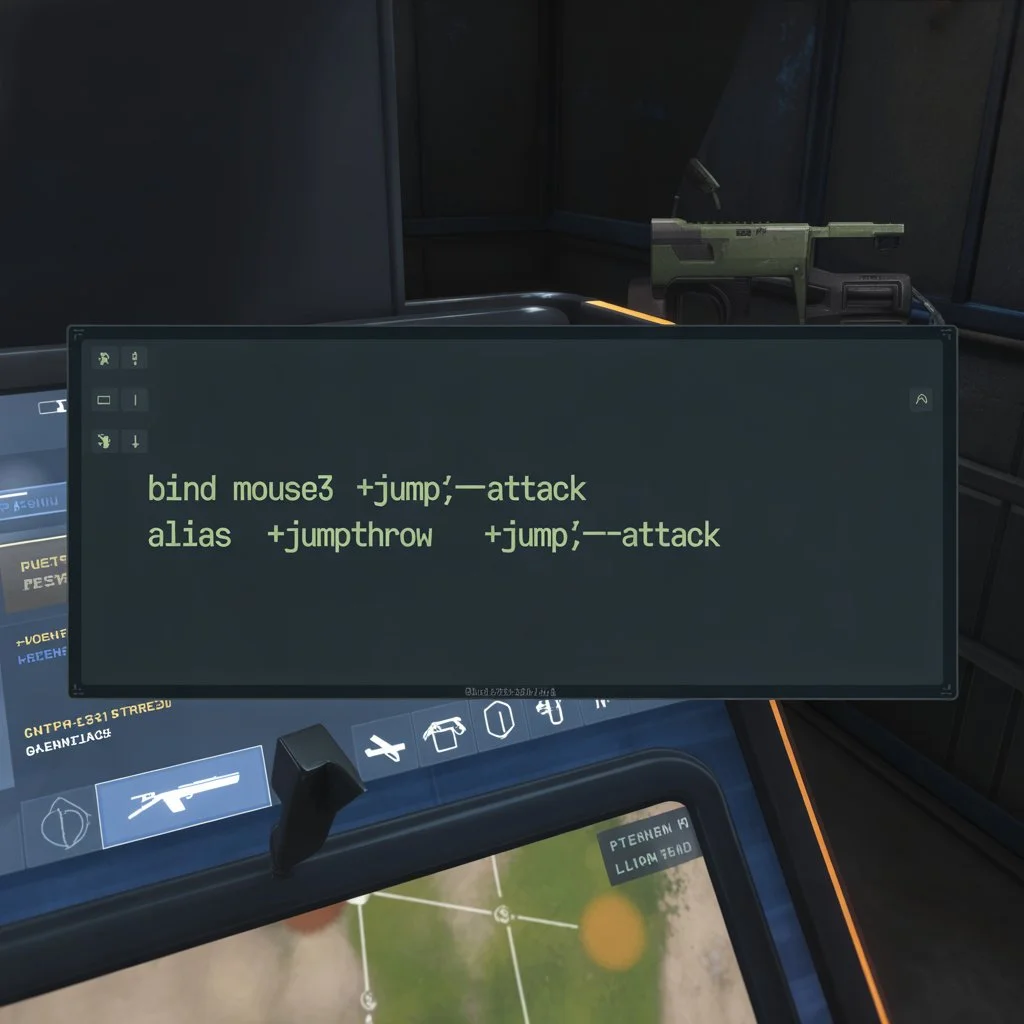
Because the classic cs2 jump throw bind utilized the `+jump` and `-attack` commands on a single key, it was flagged as illegal automation and completely disabled on official matchmaking servers.
The New Built-In Mechanic (The Grunt)
Before you start messing with console commands and workarounds, you need to understand that Valve actually built a native jump throw mechanic directly into the game to compensate for the banned scripts. They wanted to make the mechanic accessible without requiring players to write code.
In 2026, the game features a generous “forgiveness window.” If you manually press your Jump key (Spacebar or Mouse Wheel) and your Attack release (Left Click) at roughly the same time, the game will automatically calculate the perfect trajectory as if you executed it perfectly.
🔊 How to Confirm a Perfect Throw
Valve added a specific audio cue to let you know you hit the timing correctly. When you successfully perform a manual jump throw within the built-in forgiveness window, your character will let out a distinct “grunt” sound. If you hear the grunt, your smoke will land exactly where your lineup intended. If your character remains silent, you missed the timing window.
The 2026 Legal “Two-Key” Workaround
Despite the generous built-in timing window, many professional players still prefer the absolute, 100% mathematical guarantee of a bind. Because Valve only banned assigning multiple actions to a single key, the community developed a completely legal workaround: assigning the necessary actions to two separate keys that sit right next to each other on the keyboard.
Instead of pressing one button to jump and throw, you press two buttons simultaneously with the same finger. This bypasses the automation filter while providing the exact same consistency as the old cs2 jump throw bind.
Setting Up the Two-Key Bind
The most common setup involves using two keys that your thumb rests on, such as `C` and `V`, or `Spacebar` and `N`. Open your developer console (~) and input these two commands:
bind "space" "+jump"(This is likely already your default jump key)bind "n" "-attack"(This simulates releasing your left mouse button)
How to execute it: Pull the pin on your smoke grenade by holding down Left Click. Walk up to your lineup marker. When you are ready to throw, press your thumb flat across both the `Spacebar` and the `N` key at the exact same time. The game will register two separate, legal inputs, resulting in a flawless jump throw every single time.
Advanced Mouse Button Configurations
If you do not like using your keyboard thumb to hit two keys at once, you can map the 2026 cs2 jump throw bind workaround to your mouse. This is highly recommended for players who use high-end gaming mice with accessible side buttons.
Open your console and input these commands:
bind "mouse4" "+jump"bind "mouse5" "-attack"
Once again, simply pull the pin on your grenade, line up your crosshair, and squeeze both side mouse buttons simultaneously. Because your thumb naturally rests across both buttons, it is incredibly easy to press them at the exact same millisecond.
Frequently Asked Questions
Are jump throw binds banned in CS2?
Yes, traditional multi-action binds (assigning +jump and -attack to a single key) were banned by Valve in late 2024 to crack down on input automation. However, assigning those actions to two separate keys and pressing them simultaneously is completely legal and actively used by professionals.
Do you still need a jump throw bind in 2026?
Technically, no. Valve heavily improved the manual throwing mechanics. If you manually press jump and release your grenade at roughly the same time, the game will automatically correct the trajectory. You will hear your character “grunt” if the timing was successful.
How do I fix my jump throw bind not working?
If your old script from 2023 or early 2024 is no longer working, it is because Valve disabled the `alias` commands that combined movement and attack inputs. You must delete the old script from your autoexec file and transition to the legal two-key method outlined in this guide.