800 vs 1600 DPI in VALORANT: Keep Your Sensitivity
Source review: 12 October 2026. The calculator preserves calculated eDPI within one game. It is not a sensor, latency or aim-performance benchmark.
Keep your eDPI when changing DPI
Use a decimal point. Inputs stay in your browser. Results are rounded to 10 significant digits for display; check the value your game saves. The calculator does not choose an optimal sensitivity.
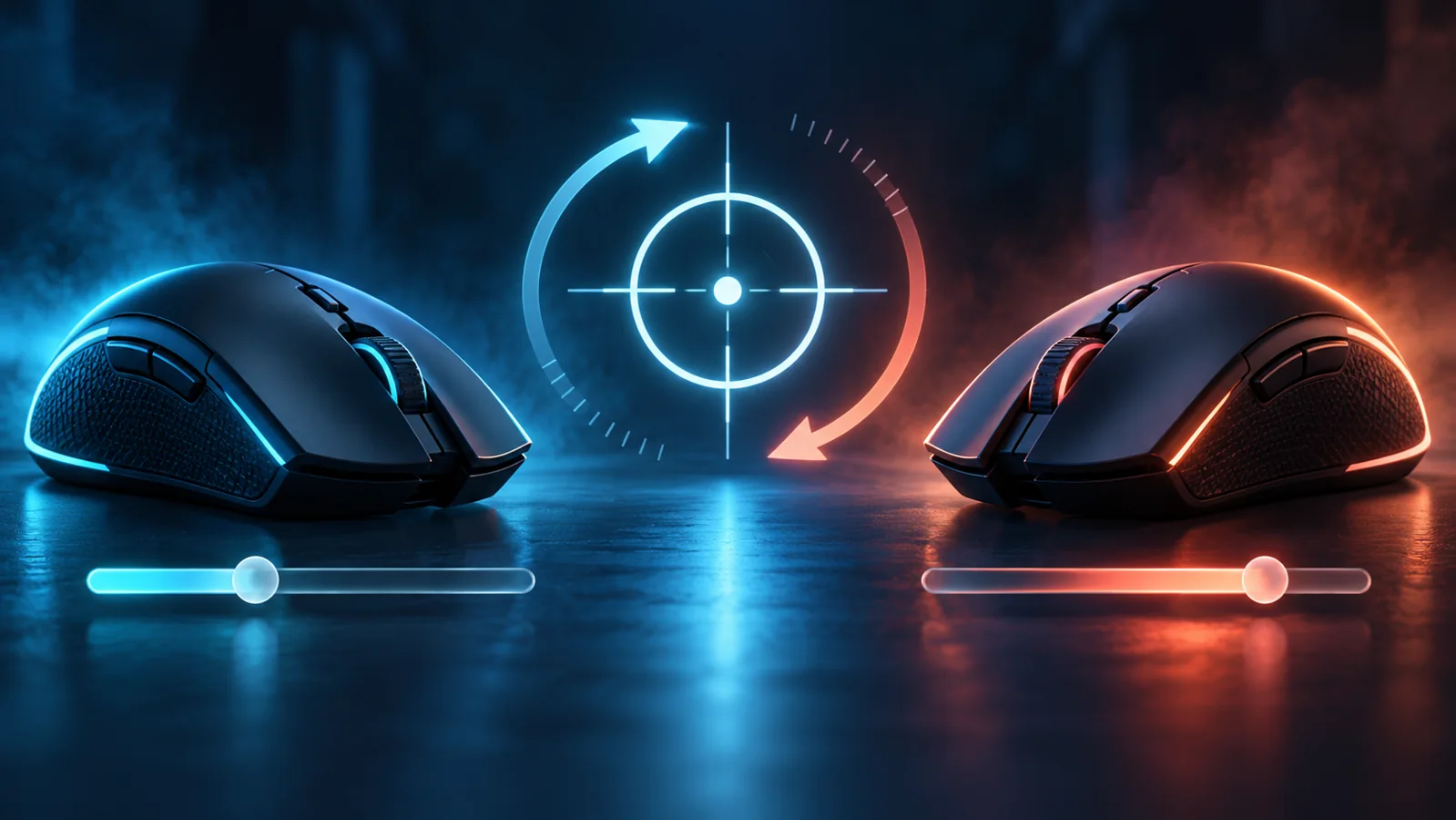
Moving from 800 to 1600 DPI? Halve your VALORANT sensitivity to keep the same calculated eDPI. For example, 800 DPI at 0.275 and 1600 DPI at 0.1375 both give 220 eDPI. This preserves the mathematical baseline; it does not establish that one DPI setting improves your aim or that two mice behave identically.
Three settings that should not be mixed up
| Control | What it describes | What this comparison does |
|---|---|---|
| Mouse DPI | The mouse’s configured movement sensitivity. | Compare two chosen DPI values. |
| In-game sensitivity | The sensitivity value you enter in VALORANT. | Adjust it inversely to the DPI change. |
| Polling rate | How frequently the mouse reports to the computer. | Keep it unchanged while comparing DPI; the eDPI formula does not include it. |
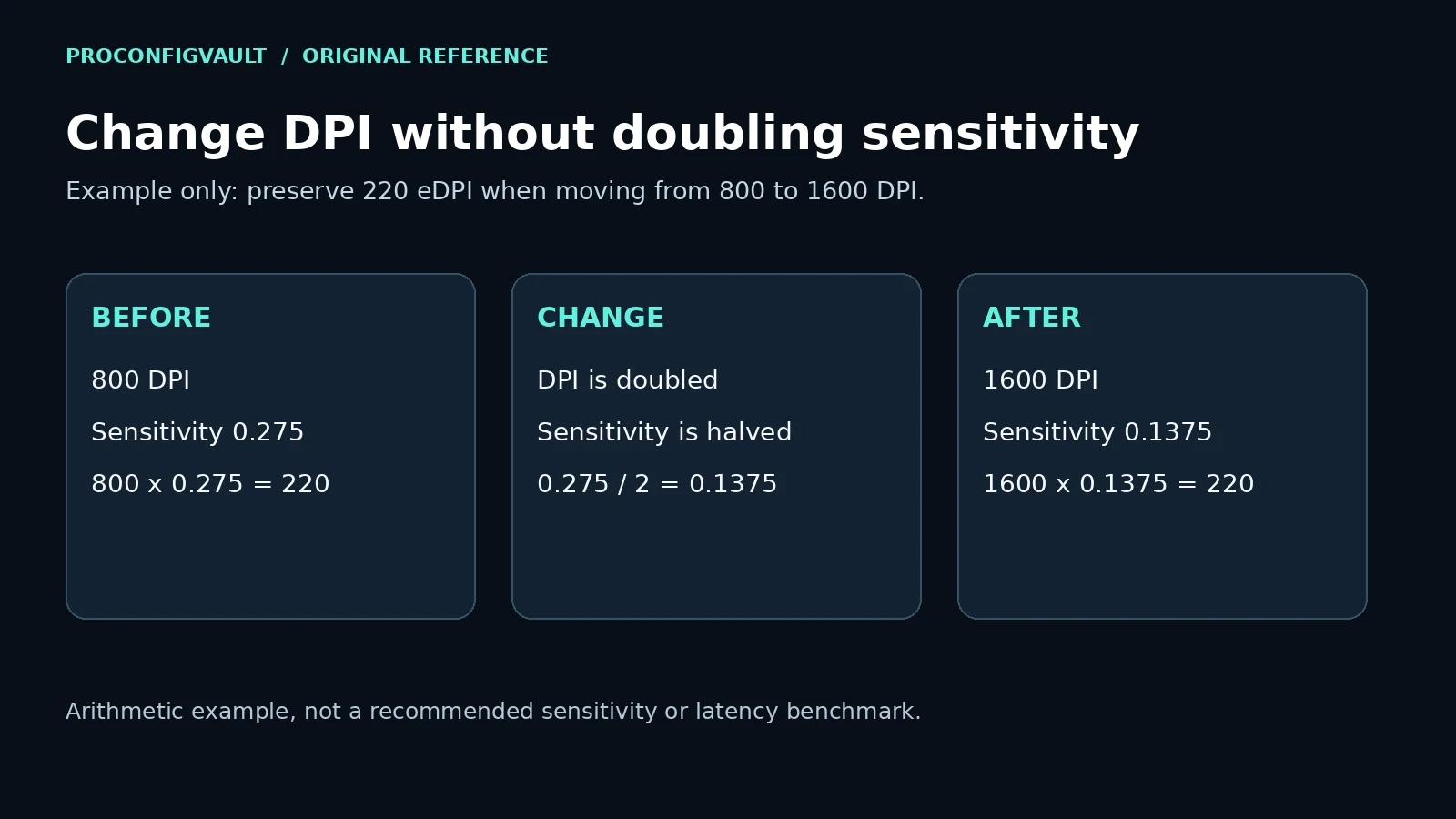
The formula, with worked examples
For this comparison, eDPI is mouse DPI multiplied by VALORANT sensitivity. The matching value at a new DPI is new sensitivity = old DPI × old sensitivity ÷ new DPI. All values in the table are arithmetic examples, not player records or recommended settings.
| 800 DPI sensitivity | 1600 DPI sensitivity | Calculated eDPI |
|---|---|---|
| 0.20 | 0.10 | 160 |
| 0.275 | 0.1375 | 220 |
| 0.40 | 0.20 | 320 |
If you leave the sensitivity at 0.275 after switching to 1600 DPI, the product becomes 440 rather than 220. That changes two things in your comparison: the mouse DPI and the effective-sensitivity baseline. Starting with the inverse adjustment helps you investigate the DPI choice without deliberately doubling that product.
Change the mouse setting, then confirm the game value
- Record your current DPI, in-game sensitivity, polling rate and any ADS/scoped multipliers.
- Choose the new DPI in the software or controls supported by your mouse. Check the exact model’s instructions.
- Enter the matching calculated sensitivity in VALORANT, then confirm what the game saved.
- Keep the other recorded settings unchanged for the first comparison.
Razer’s manufacturer instructions describe sensitivity stages and direct DPI input in Synapse. They also allow separate X/Y settings on compatible devices. If your axes use different DPI values, a single-DPI calculation does not describe both directions. First record both values and decide whether you intended that difference.
Be alert to a mouse profile or button that changes DPI again. If the saved game value seems right but the comparison changes between sessions, confirm the active mouse profile before recalculating.
Run a comparison you can repeat
Use the same practice task, distance, crosshair and mousepad area for each setup. Record what you observe: whether you overshoot a target, make repeated small corrections, or run out of comfortable mouse travel. Return to the saved baseline if the new setup is less comfortable. Repeat the comparison rather than treating one strong match as a hardware result.
This is a suggested practice method, not evidence that a particular DPI reduces input latency on your device. A latency conclusion needs a named mouse, firmware, polling rate, computer, measurement method and repeated results. A copied pro setting or a general headline is not that measurement.
Keep polling rate and Raw Input Buffer separate
A DPI change is not a polling-rate change. Manufacturer documentation treats these as separate controls. Leave the polling rate alone while you compare DPI so your notes describe a smaller change.
Some older VALORANT guides still tell players to turn Raw Input Buffer on or off. Riot’s PC Patch 11.06 removed that configurable setting and made it always enabled. Use our Raw Input Buffer guide and the dated Riot source when checking older setup instructions.
Common questions
Is 1600 DPI automatically better than 800 DPI?
This guide does not establish that. Start with matching calculated eDPI and compare your own device under consistent conditions. Comfort and a measured hardware result are different kinds of evidence.
Will matching eDPI make every part of the setup feel identical?
Not necessarily. Mouse hardware, active profiles, saved-value precision and separate aiming modes can affect your experience. The calculator preserves one numerical relationship, not the entire system.
Can I compare CS2 and VALORANT using the same eDPI number?
This calculator is for a DPI change within VALORANT. Use the sensitivity converter for a different-game workflow and review its assumptions. Identically named sensitivity controls are not enough to establish a cross-game match.
Sources and related tools
Mouse configuration: Razer DPI adjustment instructions and manufacturer DPI/polling-rate explanation. Current PC input-setting change: Riot Patch 11.06. Arithmetic examples and the practice log are original editorial work.
For a general DPI × sensitivity calculation, open the eDPI calculator. For model-specific setup, see the Viper V3 Pro guide. This page concentrates on preserving your baseline during a DPI change.