CS2 Autoexec Not Working? File-Loading Diagnostics
Source review: 12 October 2026. Command names checked against a traceable native-data dump. These instructions have not been tested in a running CS2 client by ProConfigVault.
If your CS2 autoexec is not working, test whether the file loads before changing the settings inside it. Use a small, separately named config with one console marker. A failed file read, an unrecognised command and a value that changes after restart require different checks.
Start with a marker-only file
Keep a copy of your existing autoexec. For the first test, create a separate plain-text file named pcv-load-test.cfg containing just the line below. This diagnostic file does not set your sensitivity, remove keybinds or replace a working config.
echo "PCV_LOAD_TEST_REACHED"Place it in your installation’s game/csgo/cfg folder. Locate the installed game through Steam’s local-files control so you follow the right library drive. Check the real filename and extension: pcv-load-test.cfg.txt is a different filename.
Open the game’s developer console and execute that separate file:
exec pcv-load-test.cfgThe native command-data reference describes exec as configuration-file execution and echo as console text output. If the marker appears, execution reached that line. This is a loading test; it is not proof that every command in your original autoexec applies.
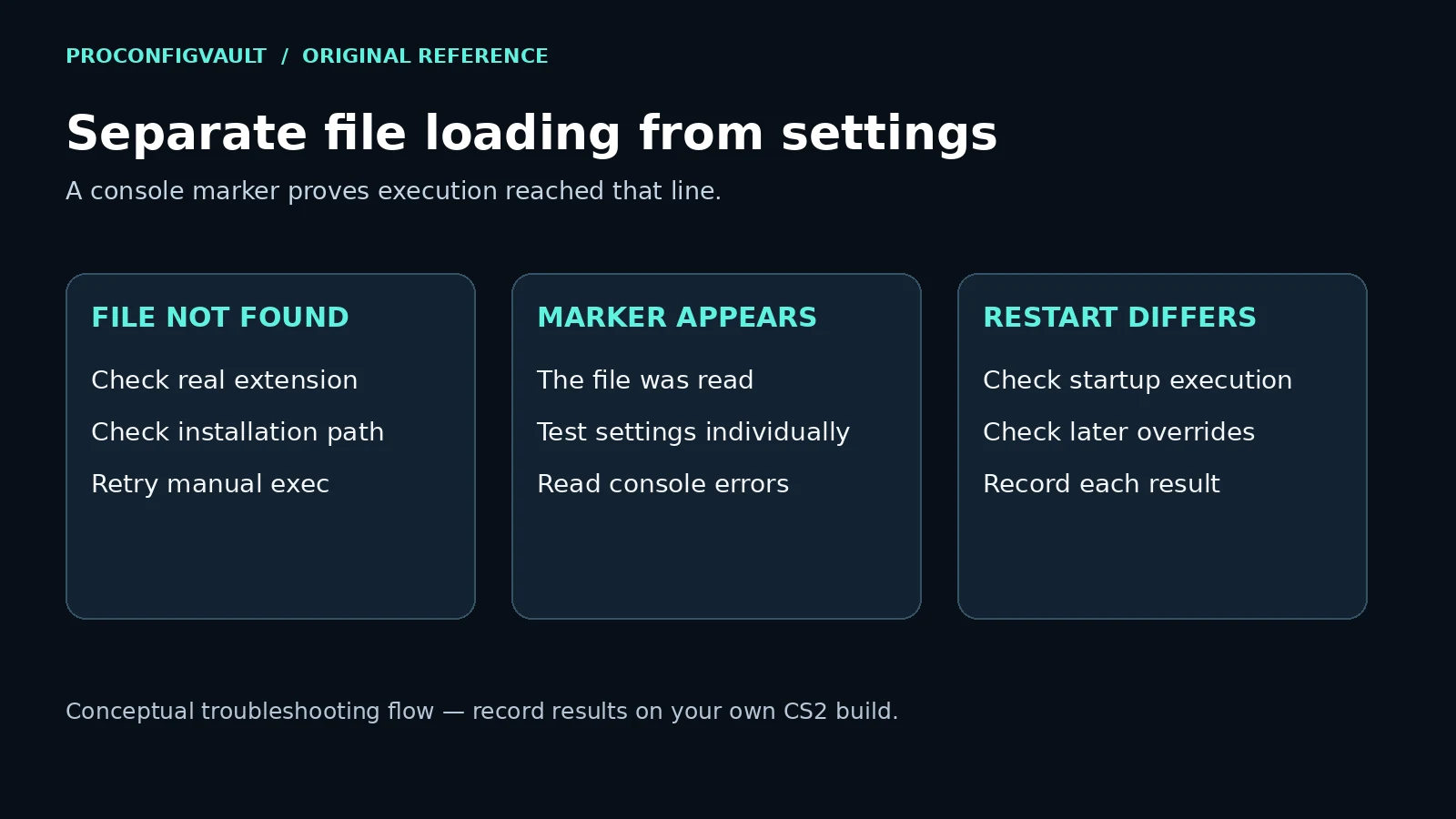
Choose the next check from the result
| Result | What to check | Evidence to record |
|---|---|---|
| The console cannot read the file | Exact filename, full extension, plain-text format and the installation’s cfg folder. | The attempted filename and the exact console message. |
| The marker appears | Test the commands from your original file individually. | Which individual command changes the intended value. |
| One command is unrecognised | Look up that name in current command help; remove assumptions from an old CS:GO list. | The command name, help output and game version. |
| Manual loading works; startup does not | Test startup execution separately, then look for later config changes. | Whether the marker and setting appear before and after restart. |
| A setting changes later | Search your other config files and check subsequent in-game changes. | The first point at which the value differs. |
Check the folder and the real extension
Do not assume your Steam library is on the default drive. Start from CS2’s installed files and find the game/csgo/cfg directory. The tracked native game-data tree contains that folder; this is different from following an old guide to a similarly named directory outside game.
Use a plain-text editor and inspect the full saved filename. Hidden file extensions can make a document look as if it ends in .cfg while its actual final extension is .txt. Check both the name you saved and the name in your console command. The diagnostic name is deliberately separate so you can make this check without overwriting an existing autoexec.
If the file loads, investigate one setting at a time
Copy one setting you understand from your own existing file and try it in the console. Read its current help with help command_name, substituting the actual command name. Use find text to search names and help text if you are checking terminology. These built-in lookup commands appear in the same native-data reference.
Record the value before the command, immediately afterward and after the event that normally resets it. A successful marker and a failed setting do not contradict each other: they describe two separate observations. A large downloaded config can also contain settings that no longer exist or only apply in a particular context. A shorter file is easier to inspect and keep current.
Test startup independently of manual execution
Once manual loading works, check whether your intended startup path executes the file. Preserve a copy of existing Steam launch options before editing them. If you use +exec autoexec.cfg as a startup invocation, add a distinguishable marker to the config you intend to load and confirm its output after restarting the client. Treat that result as a test on your current installation rather than a promise that one launch option fixes every build or every overwrite.
If manual execution works but a value is different after startup, look for another config or later setting change before adding more launch arguments. Change one thing and repeat. A startup marker does not prove that no later command overrides your value.
Do not turn a loading problem into a config replacement
Keep the original file intact while isolating the issue. After the marker test, bring over only commands you recognise and need. Do not add a collection of unrelated FPS, network and input commands just because the file executes.
The same distinction applies to rules: a .cfg file is a container for commands, not evidence that every command or automated input sequence inside it is permitted by a publisher or tournament. This guide’s diagnostic uses console text output. It does not recommend gameplay automation or claim a competitive rules approval.
Common questions
Does an echo marker prove my settings are correct?
No. It shows that execution reached the marker. Check the intended settings individually and after restart.
Should I overwrite my autoexec with a pro player’s file?
That does not isolate a loading issue. Keep your own backup and start with the small diagnostic. Player settings also need dated evidence before they can be presented as current.
What should a useful failure report include?
Record the game version, operating system, exact filename, folder path, manual-load message, marker result, startup result and the single setting you are testing. Remove unrelated personal paths or account identifiers before sharing it publicly.
Sources and related guides
Primary command-data reference: SteamTracking’s versioned CS2 command dump and tracked native cfg directory, inspected on 12 October 2026. These are third-party recordings of native game data, not a Valve-authored guide or a live-client test. The diagnostic sequence and recording table are ProConfigVault’s editorial method.
For a particular setting, continue with viewmodel commands or the CS2 crosshair guide. Test each copied setting rather than treating successful file loading as verification of the full profile.