CS2 Viewmodel Commands: Best FOV, Offset & Copy Configs
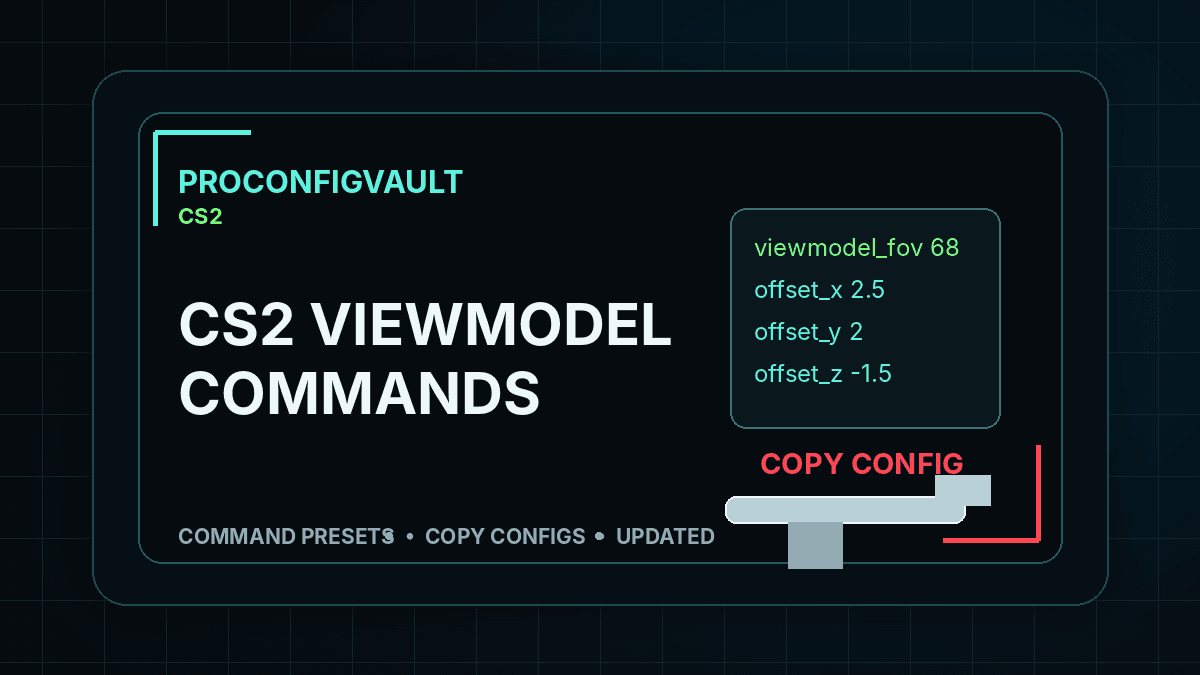
CS2 viewmodel commands control how your weapon model appears on screen. The most important commands are viewmodel_fov, viewmodel_offset_x, viewmodel_offset_y and viewmodel_offset_z.
Last reviewed: August 2026. These are safe starting presets for visibility and comfort, not fake claims that every pro uses the same viewmodel.
CS2 Viewmodel Commands Quick Setup
Use this guide when you want a cleaner weapon position in Counter-Strike 2. A good viewmodel should keep the gun from blocking too much of the screen while still feeling natural when you spray, clear corners and switch weapons. Most players start with a high FOV and a right-side offset, then adjust based on monitor size and preference.
- Open CS2 and enable Developer Console in the game settings.
- Press
~to open the console. - Copy one command block below.
- Paste it into the console and press Enter.
- If it feels good, save it in your config or autoexec file.
You can compare game updates and official Counter-Strike information on the official Counter-Strike website.
Best CS2 Viewmodel Command Presets
Pro-Style Wide Viewmodel
viewmodel_fov 68
viewmodel_offset_x 2.5
viewmodel_offset_y 0
viewmodel_offset_z -1.5
viewmodel_presetpos 0
A wide, clean starting point that keeps more screen space open.
Balanced Viewmodel
viewmodel_fov 64
viewmodel_offset_x 2
viewmodel_offset_y 1
viewmodel_offset_z -1
viewmodel_presetpos 0
Less extreme than the wide preset, useful if 68 FOV feels too stretched.
Classic Reset Preset
viewmodel_presetpos 1
Use this if you want to reset back to a normal preset before testing again.
What Each CS2 Viewmodel Command Means
| Command | What it changes |
|---|---|
viewmodel_fov |
Changes weapon field of view. Higher values can make the model feel smaller and less intrusive. |
viewmodel_offset_x |
Moves the weapon left or right. Higher positive values push the model further right. |
viewmodel_offset_y |
Moves the weapon forward or backward on the screen. |
viewmodel_offset_z |
Moves the weapon up or down. Negative values commonly lower the model. |
viewmodel_presetpos |
Loads preset positions. Use 0 when applying custom offsets. |
Best Settings for Competitive Play
For ranked and competitive play, the safest starting point is a clean wide viewmodel that does not hide too much of the lower-right part of your screen. Many players prefer viewmodel_fov 68 with a positive X offset and a slightly negative Z offset. That combination makes the weapon model feel lower and more out of the way.
Do not change viewmodel every match. Pick one setup, play deathmatch, then test it in a few real games. If the gun model distracts you when holding tight angles, lower the model or move it further out. If animations feel strange, use the balanced preset instead of the widest possible layout.
CS2 Viewmodel vs Crosshair Settings
Your viewmodel does not change bullet accuracy, but it can change how comfortable the screen feels. Crosshair settings affect how you line up shots, while viewmodel settings affect how much weapon model you see. For the best complete setup, combine this page with Best CS2 Crosshair Codes and CS2 Jump Throw Bind.
How to Save Your Viewmodel
If commands reset after restarting the game, save them in your CS2 config workflow. Keep a backup of your current config before editing anything. Add only the viewmodel lines you understand, then restart CS2 and confirm the settings load properly.
FAQ
Do CS2 viewmodel commands improve aim?
They do not change bullet accuracy, but a cleaner viewmodel can reduce distraction and improve screen comfort.
What is the best CS2 viewmodel FOV?
A common competitive starting point is 68, but some players prefer lower values if the weapon animations feel too stretched.
Can I reset my CS2 viewmodel?
Yes. Use viewmodel_presetpos 1 to return to a normal preset before testing another setup.
Related: Best CS2 Crosshair Codes · CS2 Jump Throw Bind · ZywOo CS2 Crosshair