s1mple CS2 Crosshair & Settings (2026)
s1mple CS2 Settings & Crosshair Code: 2026 Config Guide
Oleksandr “s1mple” Kostyliev is universally recognized as the greatest Counter-Strike player of all time. Known for his unbelievable mechanical skill and game sense, mastering the exact s1mple CS2 settings is the first step for any aspiring AWPer or aggressive rifler looking to climb the Premier leaderboards. Unlike many modern esports pros who prefer ultra-low sensitivities, s1mple relies on a highly erratic, high-eDPI playstyle that allows him to execute legendary flick shots and multi-kills.
If you want to replicate the success of the NAVI legend, you need his precise configuration. This complete 2026 guide breaks down his latest mouse sensitivity, custom cyan crosshair, 4:3 stretched video settings, and the premium hardware loadout documented on his official Liquipedia profile.
s1mple Hardware Vault: The GOAT’s Setup
A crucial part of optimizing your s1mple CS2 settings is ensuring your hardware can keep up with his erratic, high-speed wrist movements. Here is the premium esports gear he currently uses on stage to eliminate input lag:
| Hardware Component | Model / Gear |
|---|---|
| Gaming Mouse | Logitech G Pro X Superlight 2 |
| Esports Monitor | ZOWIE XL2586X+ (540Hz) |
| Keyboard | Logitech G715 (GX Brown/Blue Switches) |
| Gaming Headset | Logitech G PRO X 2 Wireless |
| Mousepad | SteelSeries QcK Performance Speed / Hator |
s1mple Mouse Settings & eDPI
The core of s1mple’s dominance comes from his unique mouse parameters. He is considered a “wrist aimer,” making tiny, rapid micro-adjustments with his wrist rather than swiping his whole arm across the desk. He plays on a surprisingly high sensitivity multiplier compared to the average HLTV top 20 player.
- DPI: 400
- In-Game Sensitivity: 3.09
- eDPI (Effective DPI): 1236
- Zoom Sensitivity: 1.00
- Polling Rate (Hz): 2000Hz
- Windows Sensitivity: 6/11 (Raw Input Enabled)
His 1236 eDPI allows him to effortlessly clear 180-degree angles in a split second, while his 2000Hz mouse polling rate ensures absolute precision during chaotic site executions.
s1mple CS2 Crosshair Code & Visuals
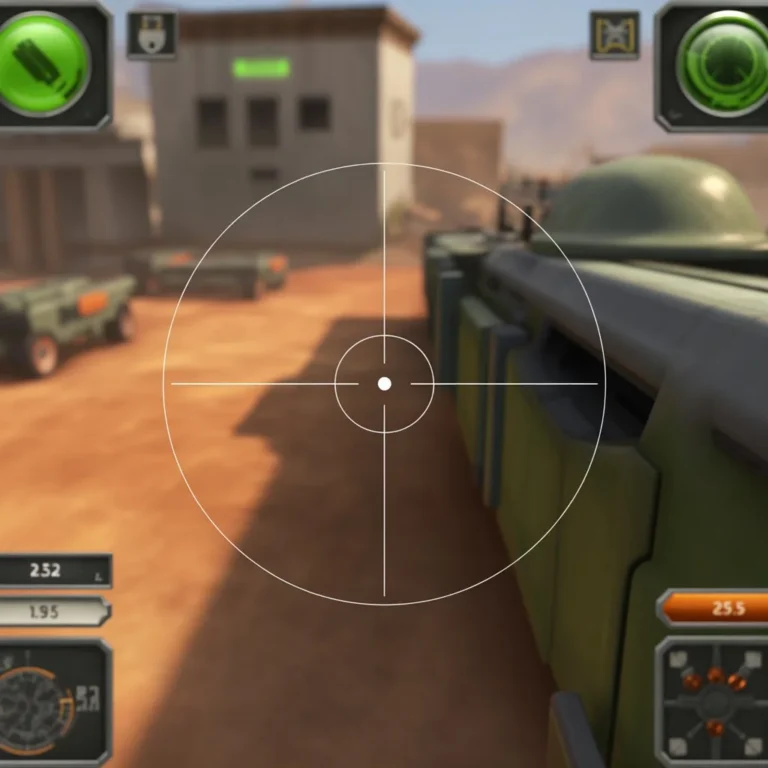
Because he plays on such a high sensitivity, he needs a crosshair that provides maximum visibility without blocking enemy heads at long distances. He currently uses a tight, static cyan crosshair with no center dot.
🎯 s1mple Pro Code
CSGO-E8xcE-27Lmw-2ipNt-3HZvp-pevvEConsole Command Alternative:
If you prefer to manually inject his crosshair via the developer console, copy and paste this exact string:
cl_crosshairsize 1; cl_crosshairthickness 0; cl_crosshairgap -2; cl_crosshaircolor 4; cl_crosshairstyle 4; cl_crosshairdot 1; cl_crosshair_drawoutline 0;
s1mple Video Settings & Viewmodel
A massive part of the s1mple CS2 settings formula relies on manipulating the game’s aspect ratio to make enemy character models appear wider and easier to hit. He achieves this through classic 4:3 stretched scaling.
- Resolution: 1280×960
- Aspect Ratio: 4:3
- Scaling Mode: Stretched
- Display Mode: Fullscreen
- Global Shadows: High (Crucial for seeing enemy shadows around corners)
- Anti-Aliasing: 8x MSAA
Viewmodel Commands:
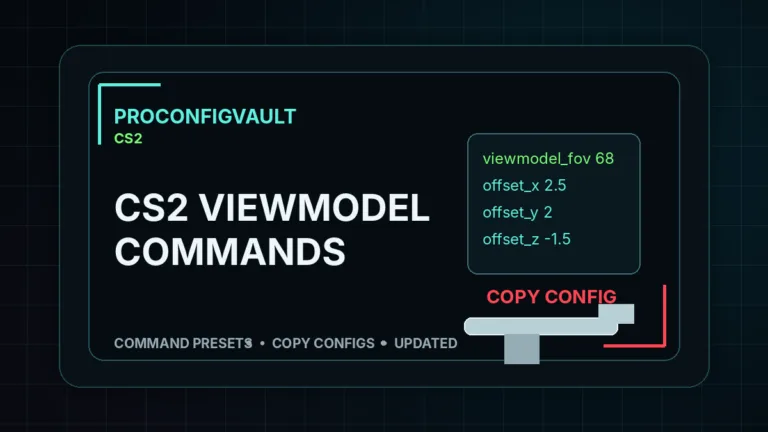
He plays with his gun model pushed slightly further back and to the right to open up his central field of view.
viewmodel_fov 68; viewmodel_offset_x 2.5; viewmodel_offset_y 0; viewmodel_offset_z -1.5; viewmodel_presetpos 2;
s1mple CS2 Launch Options
To squeeze every frame out of the Source 2 engine and eliminate stuttering, another vital piece of the s1mple CS2 settings puzzle is his Steam launch configuration. He keeps it relatively minimal, focusing purely on monitor refresh rate performance.
-freq 540 -novid -console -tickrate 128 +fps_max 0
Frequently Asked Questions
Is s1mple’s sensitivity too high for a beginner?
For most new players, an eDPI of 1236 is incredibly difficult to control. The average CS2 pro sits between 700 and 900 eDPI. However, if you are a dedicated wrist-aimer, his settings allow for unparalleled flicking speed.
Why does s1mple play on 1280×960 stretched?
Playing on a 4:3 stretched resolution physically stretches the game image across a standard 16:9 monitor. This distorts player models, making them appear wider and move slightly faster on the screen, which many AWPers feel makes landing sniper shots much easier.
How do I import the s1mple CS2 settings into my game?
To import his crosshair, copy the share code provided above, open your CS2 settings menu, navigate to the “Game” tab, select “Crosshair,” and click “Share or Import” to paste the code.